How often do you look up the command to restart a Deployment? Or to scale it, or to trigger a Job from a CronJob?
Unless you do it every day, it's easy to forget the exact syntax. Even when you remember it, there's still a lot of typing and copying of resource names, and a typo in the namespace or context runs it somewhere else.
In Aptakube, the common tasks are quick actions, one right click or key press away.
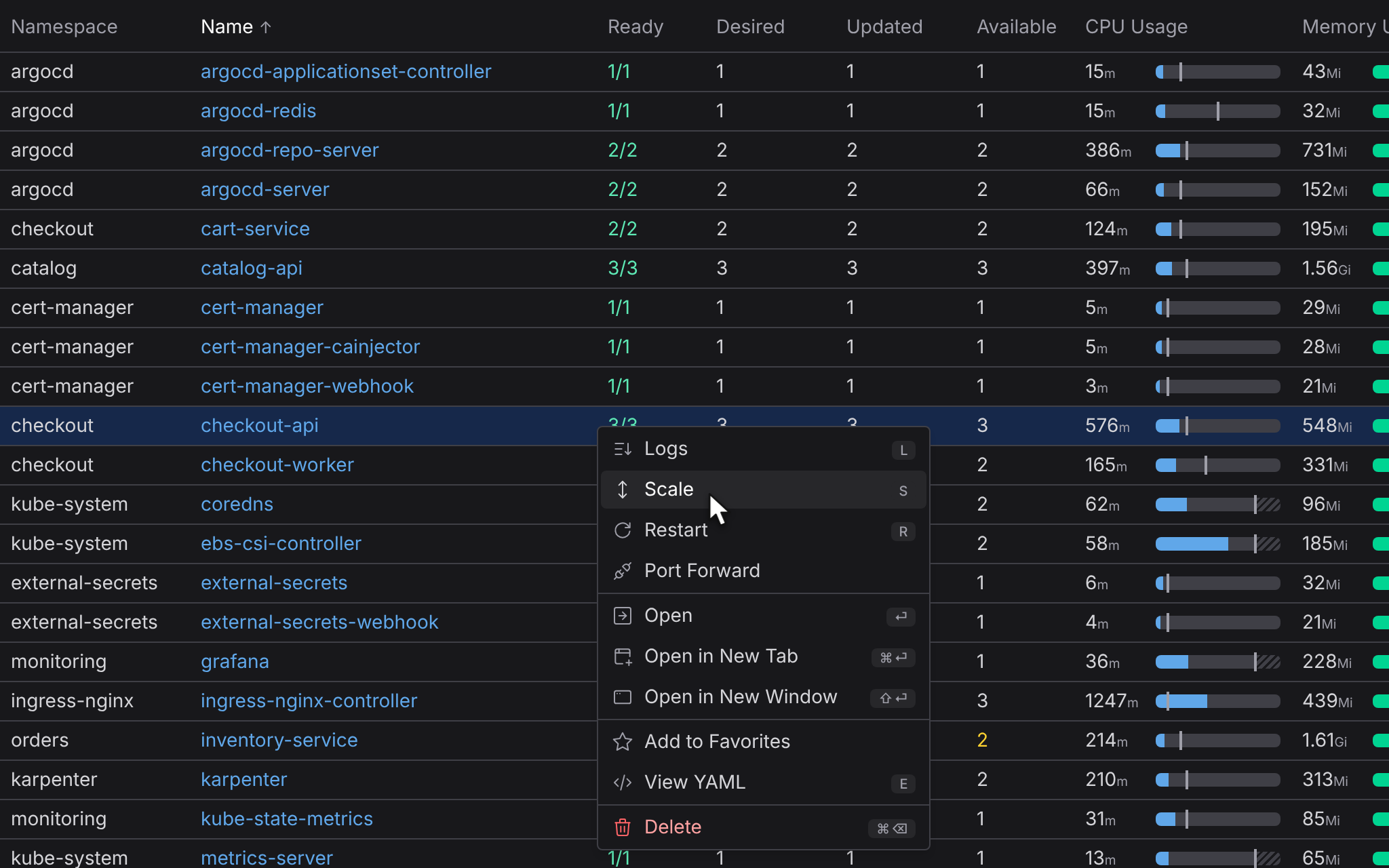
Right click, or press a key
Every row and every details page has the same actions. Right click a resource to see them, or use the shortcuts: L for logs, S to scale, R to restart, E for the YAML, Enter to open it and Cmd/Ctrl + Backspace to delete it.
Actions work on many resources at once too. Select a few rows, or drag across them, and restart, scale, delete or view the logs of all of them, even when they're in different clusters.
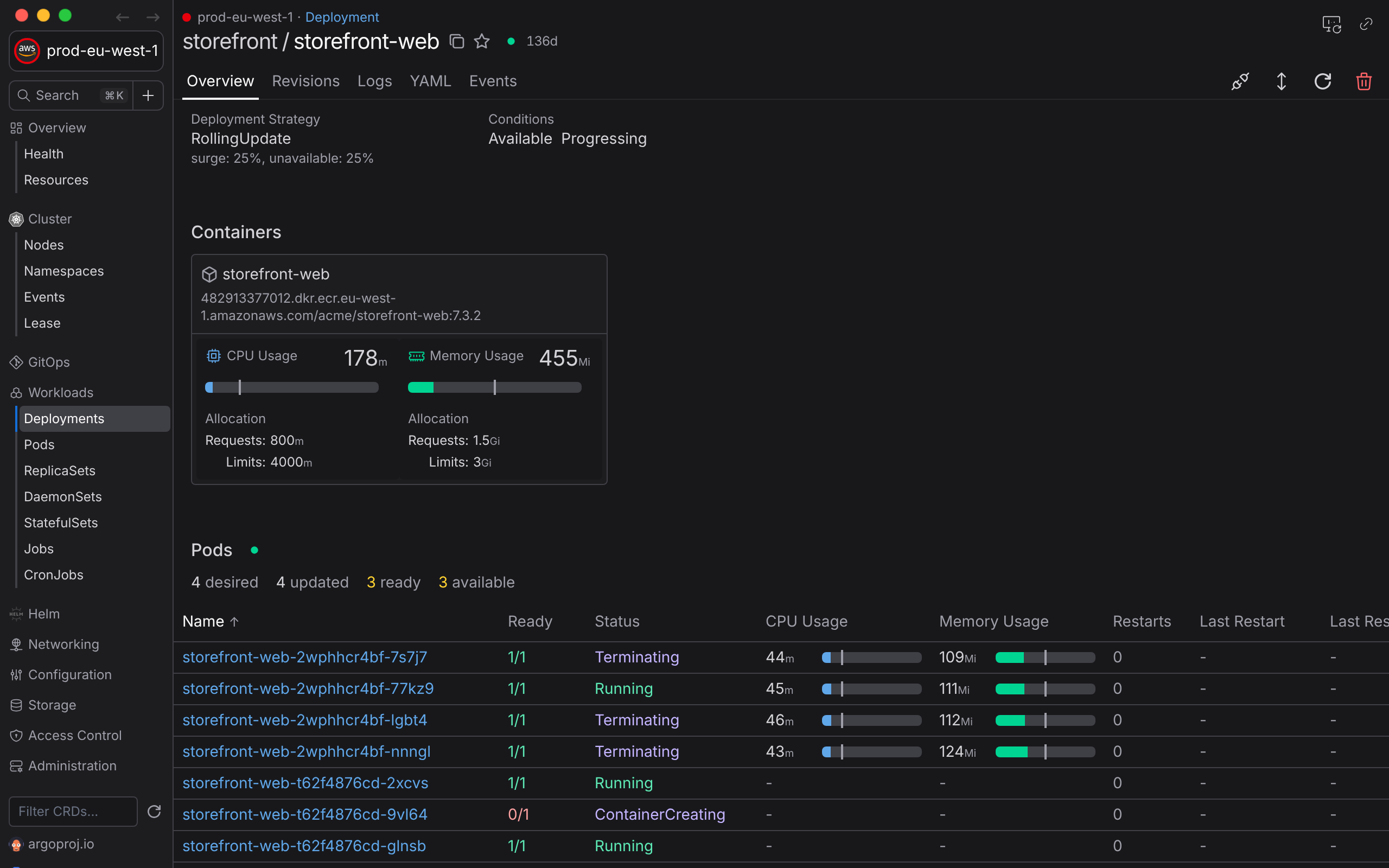
Restart without downtime
There's no command to restart a Pod. What you restart is the Deployment, StatefulSet or DaemonSet that owns it, and Kubernetes replaces its Pods following the update strategy. Aptakube does the same as kubectl rollout restart, so a RollingUpdate starts new Pods before it removes the old ones, and you can watch it happen.
Scale in and out
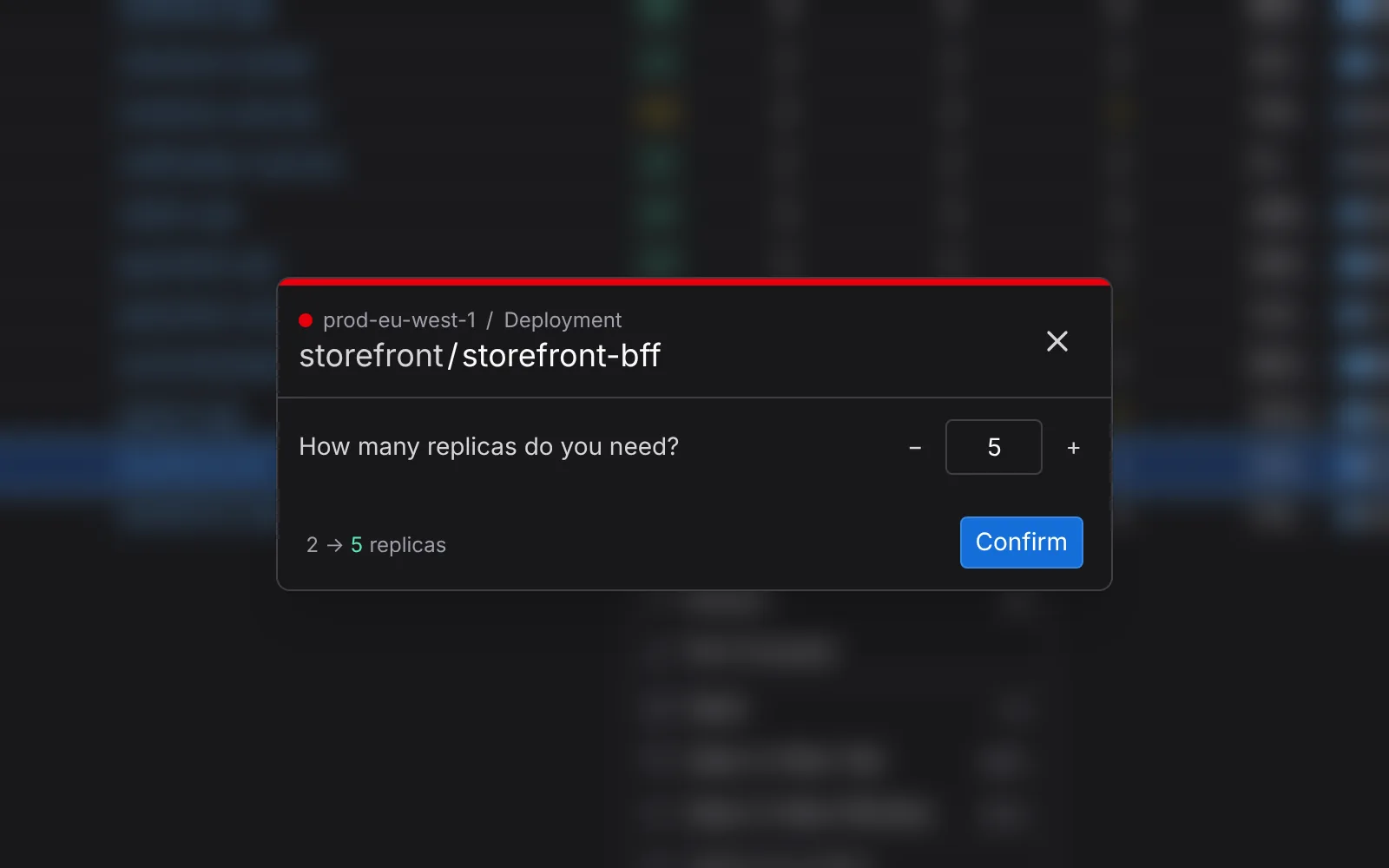
Scaling changes how many replicas a Deployment, ReplicaSet or StatefulSet runs. Pick the number you need and Kubernetes does the rest.
Everything else
- Pods: view logs, open a shell, debug with an ephemeral container and forward ports.
- Port forwards: forward a port of a Pod, a Service or a workload to localhost. When its pod goes away, a forward to a Service or a workload moves to another one of its pods. Every forward shows whether it's active, and can be saved to start again in one click.
- Workloads: restart, scale and roll back to a previous revision.
- CronJobs: trigger a Job now, suspend and resume the schedule.
- Nodes: cordon, uncordon and drain, with the progress of the drain as it runs.
- Helm releases: upgrade, roll back and uninstall.
- Any resource, including CRDs: view and edit the YAML, compare it with another one, copy its name, add it to your favorites, open it in a new tab or window, and delete it.